
Getting started
Quick start
From a fresh install to a file your printer will read.
⚠️ This slicer is still experimental, the same applies to the profiles we have packed within it. We recommend trying it first with small models to ensure you don’t waste too much time or resin.
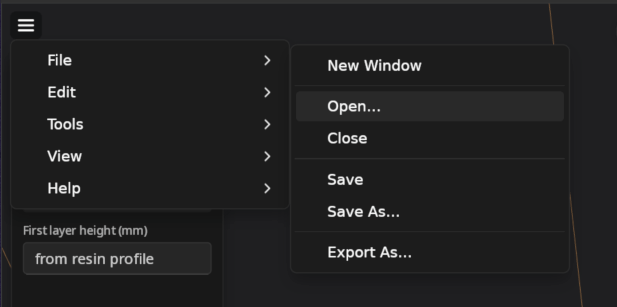
1. Open a 3d mesh file
You can open open a mesh file in many ways:
Top Menubar->File->Open...- Drag a mesh file on the Slicer window
- Use the keys shortcut
Ctrl + O
⚠️ Supports are not generated automatically yet, so bring a supported mesh if the geometry needs it.
2. Repair the mesh (Optional)
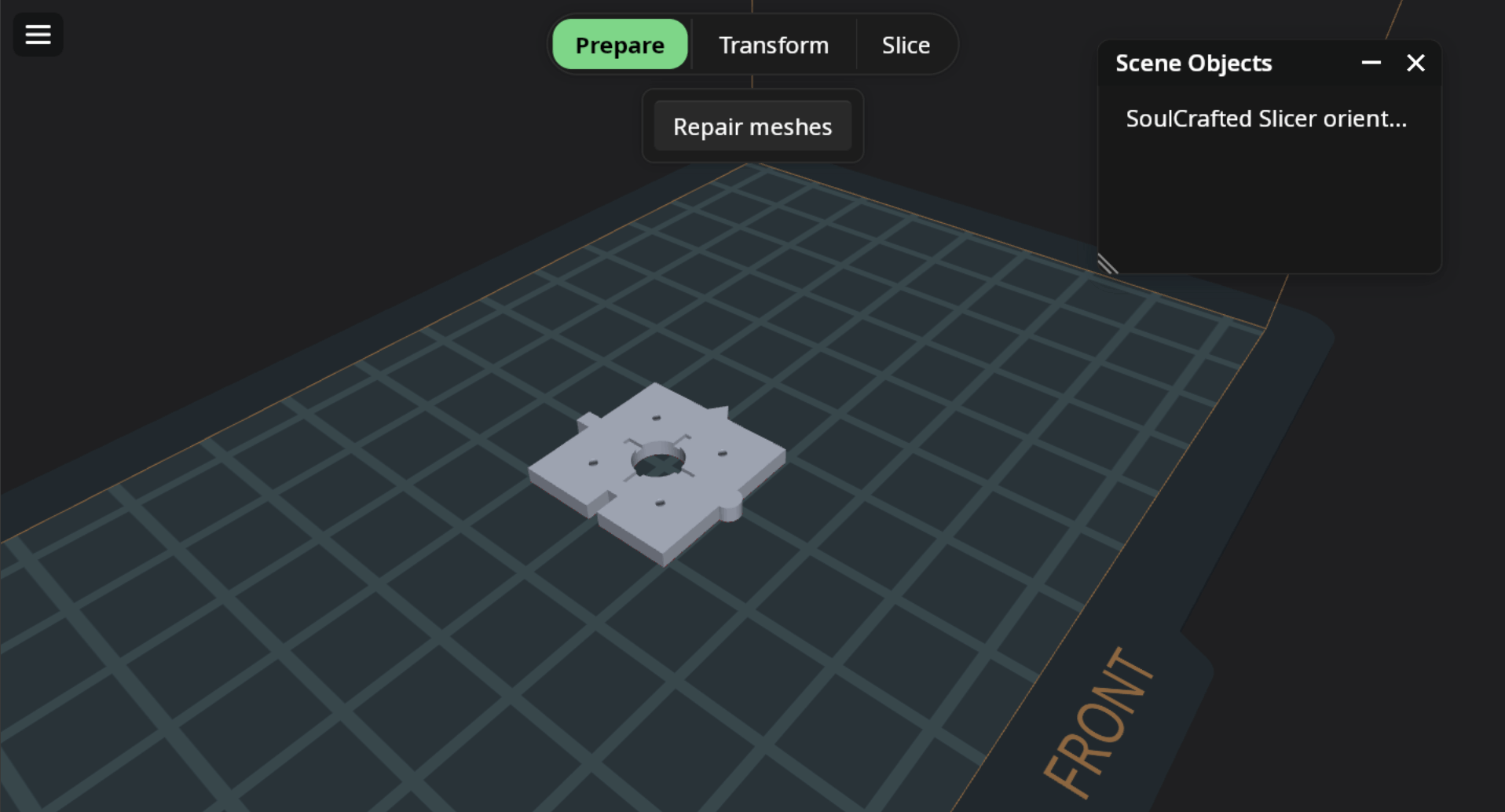
Sometimes 3d meshes have minor problems that make them unfit for slicing (when these are not watertight).
The SoulCrafted Slicer provides some functionality to repair many of these problems.
3. Transform (Optional)
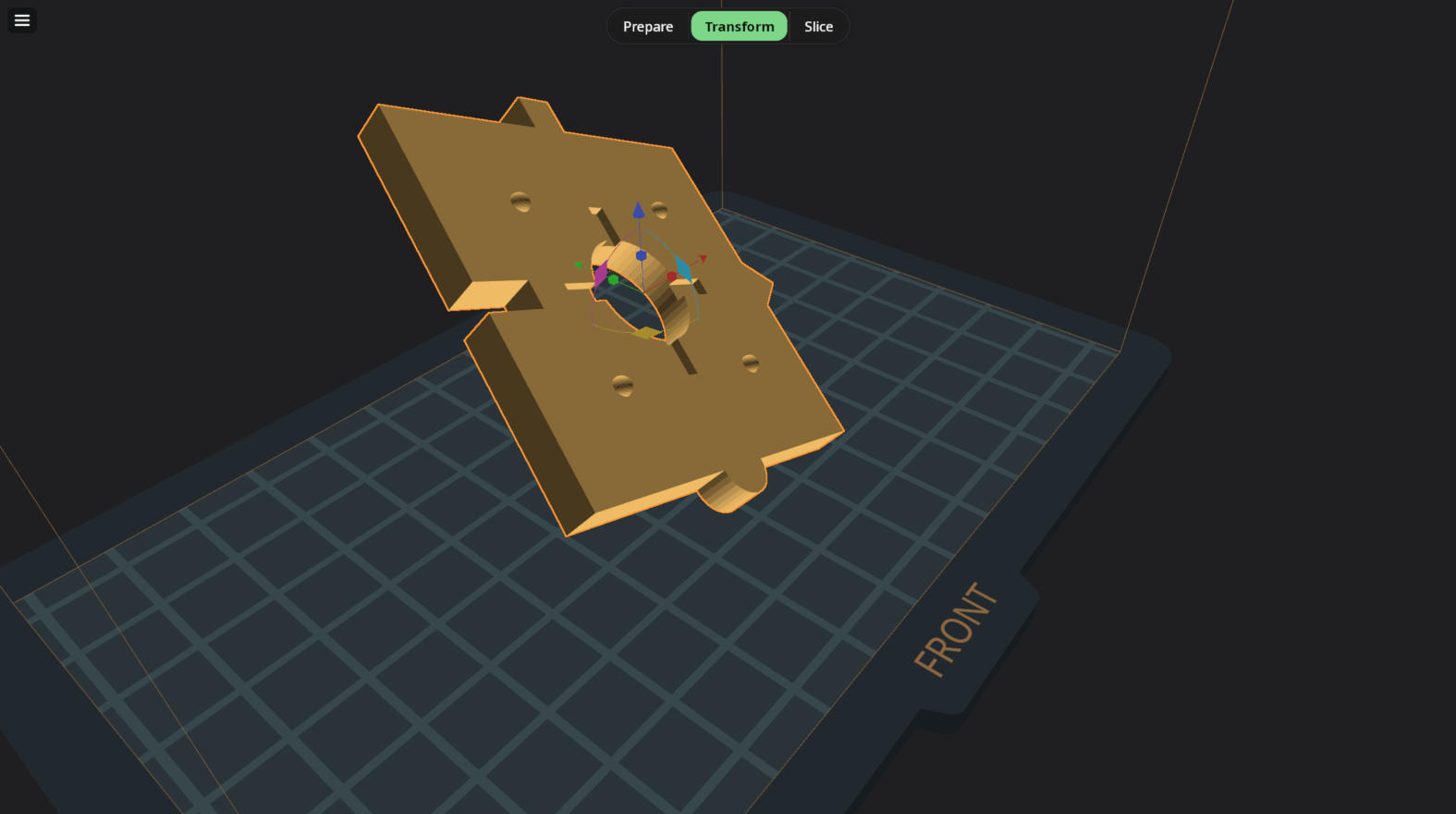
If you wish, you can apply some transforms to your model.
4. Add supports
Not yet implemented, but it will arrive very soon.
5. Slice the model
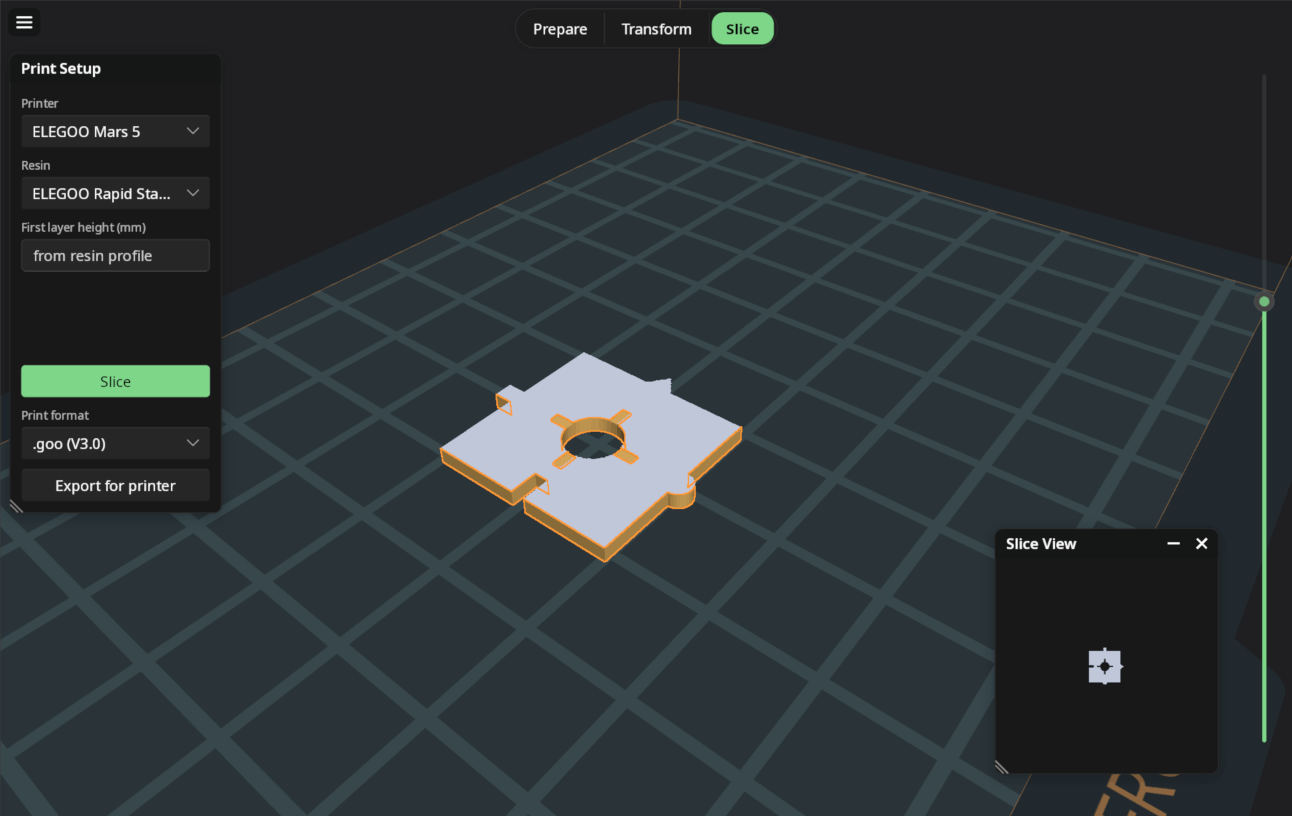
To slice the model you will have to select a printer profile and a resin profile.
If you don’t see any of them listed, open the Preferences (Top Menubar ->
Edit -> Preferences) and mark the profiles you want to use as “favourite”.
6. Export for your printer!
For now the slicer can generate only .goo and .ctb files, we’ll extend
the support for more file formats soon.
⚠️ This slicer is still experimental, the same applies to the profiles we have packed within it. We recommend trying it first with small models to ensure you don’t waste too much time or resin.